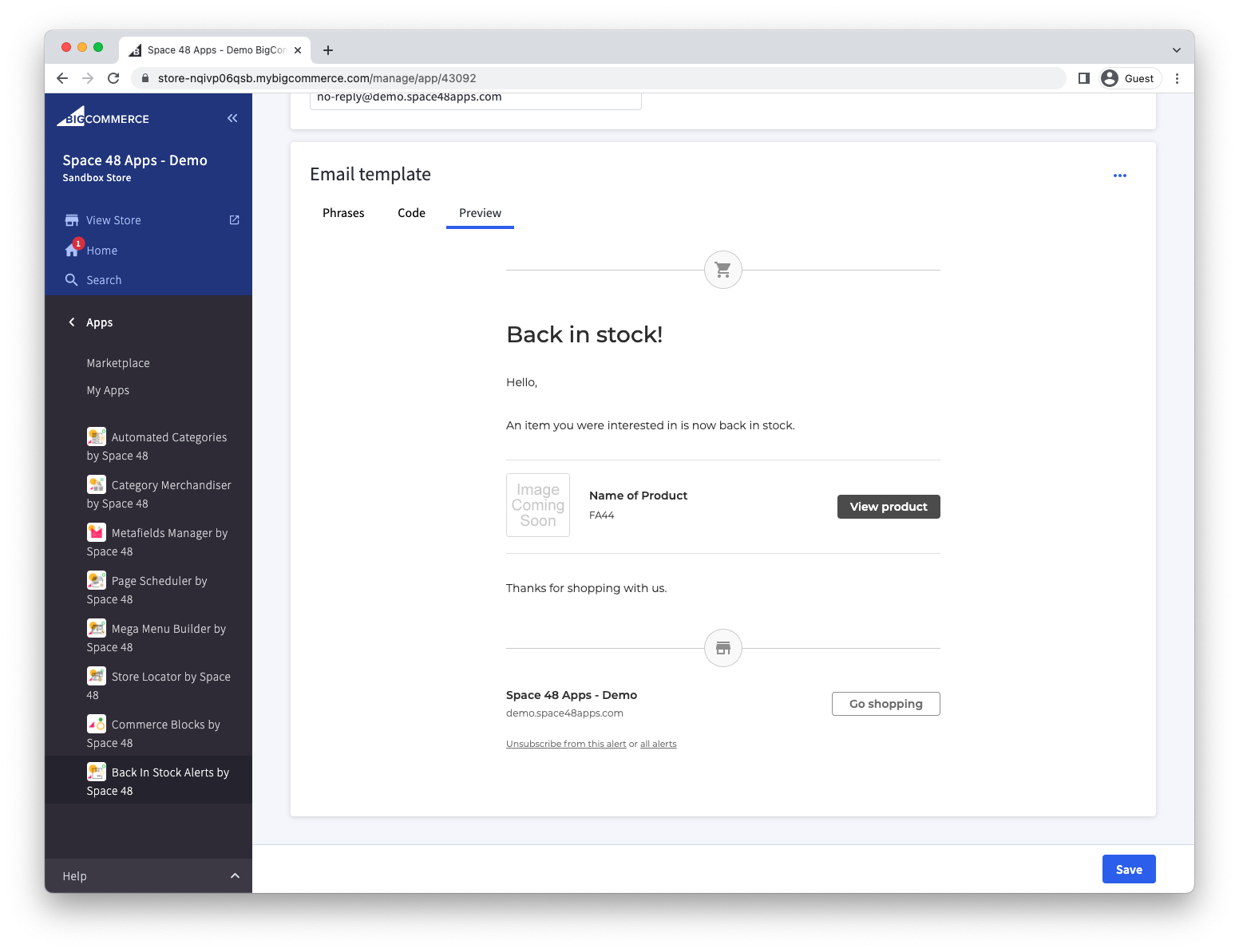
Customizing email design
The all-important step of converting engaged visitors into paying customers happens when they receive their back-in-stock email notification. So it’s important that the email is well-designed, easy to understand, and includes a clear call-to-action.
Default email design
Out of the box, the back-in-stock notification email follows the native design of other BigCommerce emails.
The default template is:
- responsive across devices
- compatible with a wide range of email clients
- styled to feel familiar alongside BigCommerce’s own email templates
 |
 |
Update text with phrases
The simplest changes you can make are to update the text used within the email template.
The easiest way to do this is from the Phrases tab. You can update existing phrases, add new ones, and then reference them from your email template.
For example:
{{lang 'title'}}
Where title is the phrase name.

Customize or bring your own email template
You have full access to the email template used for back-in-stock notifications.
Out of the box, we provide a template that is similar in design to BigCommerce’s default emails. You can customise this to suit your own store, or replace it entirely with your own custom email template.
If something goes wrong, you can use Restore default template to return to the original version.

Helpers
We provide a handful of handlebar functions to help customise your email template.
| Helper | Purpose | Example |
lang |
Outputs a phrase configured in the app. Use the phrase name as the argument, for example title. | {{lang 'title'}} |
date |
Outputs a formatted date or time. Uses your store’s timezone by default. | {{date 'Y'}} |
debug |
Shows the current values of all available variables during template development. Triple braces are required so the output is rendered as raw HTML. | {{{debug}}} |
The date helper accepts up to two arguments.
| Argument | Description |
| Date format | A PHP date format string, such as Y or M Y |
| Date string | Optional. If provided, this date will be formatted instead of the current time. |
Examples:
{{date 'Y'}} // 2026
{{date 'M Y' '2028-04-02 03:04:05'}} // Apr 2028
Available store variables
In addition to phrases, the following variables are available within the email template.
If you are using multiple storefronts, the appropriate details for the current storefront will be used.
| Variable | Description |
| store.name | Store name |
| store.path | Store URL |
| store.domain_name | Store URL (without "https://") |
| store.logo.url | URL to your storefront's logo |
| store.logo.title | Configured alt text for your storefront's logo |
Available product variables
| Variable | Description |
| product.name | Product name |
| product.price | Product price |
| product.sku | Product SKU |
| product.inventory_level | Product inventory level |
| product.url | URL to the product. This links to our app and then redirects to your storefront, which enables product click tracking |
| product.image_url | URL to use to show the image of a product |
| product.variant_options | Summary of the selected variant, for example Color: Green, Size: Small |
Product metafields
Product and variant metafields are also available in email templates.
This allows you to include additional product information in your back-in-stock emails, such as custom descriptions, specifications, badges, delivery messages, size guides, or any other data stored in metafields.
You can access product metafields using the following format:
{{product.metafields.namespace.key}}
For example:
{{product.metafields.details.description}}
Where:
- details is the metafield namespace
- description is the metafield key
Variant metafields
You can access variant metafields through the product’s variant object:
{{product.variant.metafields.namespace.key}}
For example:
{{product.variant.metafields.details.description}}
This is useful when the customer requested a stock alert for a specific variant and you want to include variant-specific information in the email.
JSON metafields
Metafields are often used to store data as JSON.
If a metafield contains a JSON object, you can access properties inside that object using dot notation.
For example, if a metafield contains:
{"value": "Large"}
You can access the value property like this:
{{product.metafields.namespace.key.value}}
Accessing values in a JSON array
If your metafield contains an array of objects, such as:
[{"colour": "red"},{"colour": "blue"}]
You can access a specific item in the array using its index:
{{product.metafields.namespace.key.0.colour}}
Example output:
red
You can also loop through the array:
{{#each product.metafields.namespace.key}}
    {{colour}}
{{/each}}
Looping through an array of values
If your metafield contains an array of values, such as:
["Test 1", "Test 2", "Test 3"]
You can loop through each value like this:
{{#each product.metafields.namespace.key}}
    {{.}}
{{/each}}
HTML metafields
If a metafield contains HTML, use triple curly brackets instead of double curly brackets.
Double curly brackets escape HTML, which means the HTML will be shown as text. Triple curly brackets allow the HTML to render in the email template.
For example, if a metafield contains:
<h1>Title</h1>
Use:
{{{product.metafields.namespace.key}}}
This will render the HTML in the email.
Use triple curly brackets only for metafields where you trust the HTML content.
Dotdigital variables
If you are using Dotdigital, please prefix variables with data..
For example:
{{data.product.name}}
For product metafields:
{{data.product.metafields.namespace.key}}
For variant metafields:
{{data.product.variant.metafields.namespace.key}}
Preview your email
After you’ve made changes to the email template, use the final tab to preview your email before saving.
This allows you to check that:
- the layout looks correct
- phrases are displaying as expected
- product and variant details are showing correctly
- metafield values are rendering as intended
- links and calls-to-action are clear
Once you are happy with the preview, save your changes and the new email design will be live.